
How VokeLine Handles Local History
What stays in the desktop database and when a voice transcript is sent to the VokeLine gateway.
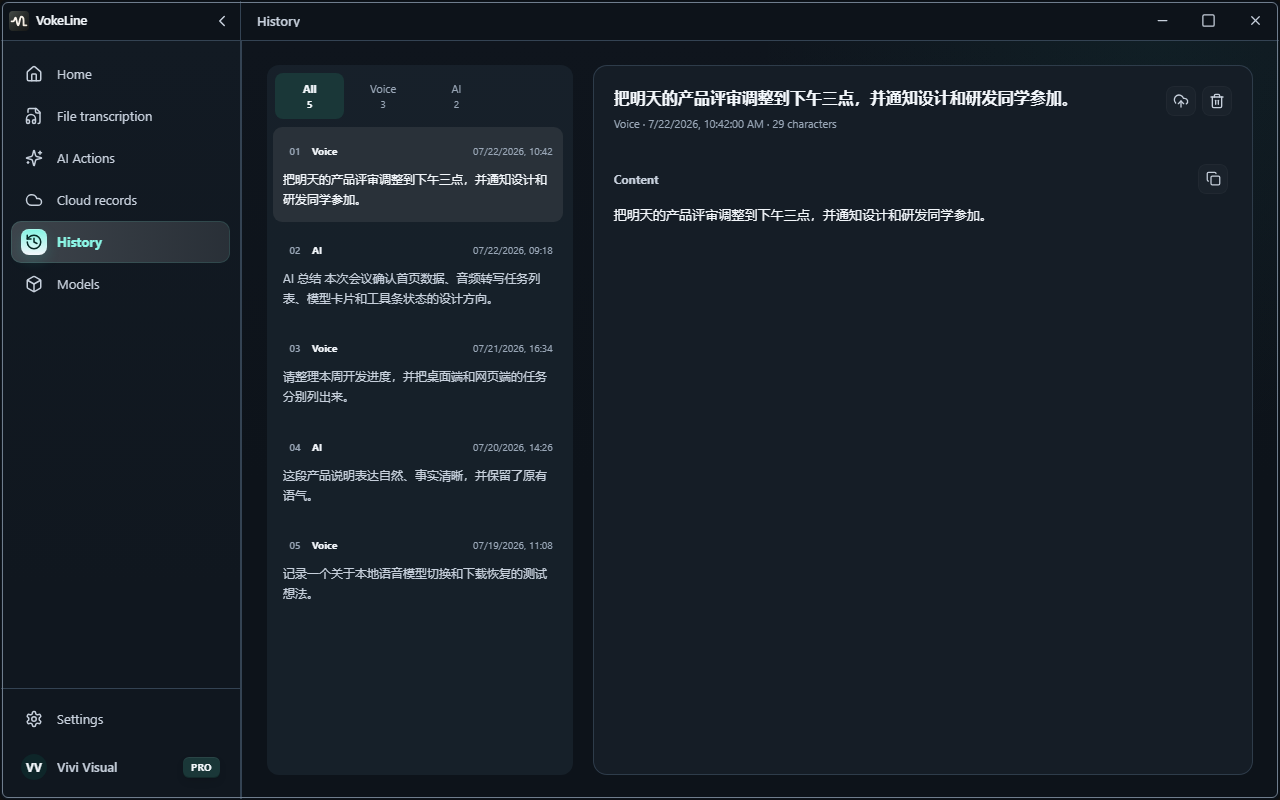
VokeLine keeps desktop history in its local application database. Browsing a previous item or editing local settings does not require uploading that history.
The behavior below reflects the current desktop implementation. The current release status remains the authoritative reference for public availability.
When content leaves the device
Content is sent only when you explicitly invoke a network-backed operation such as AI explanation. The desktop sends the current input and necessary options to the authenticated VokeLine gateway. The security Worker then calls the configured provider without exposing provider credentials to the client.
What the gateway retains
The gateway retains bounded usage metadata for authentication, idempotency, billing, quota enforcement, and reconciliation. Application logs and D1 do not intentionally store complete AI input or provider response bodies. Successful results are encrypted and expire under the service retention policy.
Delete, copy, and export boundaries
Under Settings → Privacy & Data, turn off local history to prevent new completed result bodies from being added. In History, delete an individual entry when only one record should be removed, or use Clear history to remove all history entries from the current device. Clearing local history does not cancel an already submitted request, erase restricted billing metadata, or refund credits.
The current desktop app does not provide a bulk history-export command. Copy a result you need to keep before deleting it. Do not treat a local application backup or an operating-system backup as a supported, portable VokeLine export.
What local storage does and does not protect against
Local history reduces unnecessary server retention and cross-device synchronization. It does not protect text from another person who can access the unlocked operating-system account, device backups, screen-capture software, clipboard managers, or malware. Use the operating system's disk encryption and account controls when the device contains sensitive work.
Disabling history also does not stop a network-backed action that you deliberately start. AI and web search still send the minimum request content to the service selected in the interface.
Verify the setting
- Open Settings → Privacy & Data and turn off history recording.
- Run a short, non-sensitive test action.
- Open History and confirm that no new completed result body was added.
- If an old item remains, delete that item or clear the current device's history.
If clearing fails, keep the app open and retry. For a broader data-flow explanation, read Privacy and data. For recovery steps, see Troubleshooting.
See the Privacy Policy for the canonical data-processing terms.